GuidesPage 04 of 14
Troubleshooting
Diagnose sign-in, launch, stream quality, video, audio, input, and native streaming problems
On this page9 sections
Most OpenNOW problems fall into one of four layers: authentication, the GeForce NOW session, the local native stream path, or input. Start with the quick checks below, then use the section that matches what you see.
Check NVIDIA first
OpenNOW depends on NVIDIA's login, catalog, CloudMatch, queue, and streaming services. If the official GeForce NOW client is also failing, wait for the service to recover before changing local settings.
Five-minute check#
Restart OpenNOW. This clears the active session UI and forces the app to rebuild local process state.
Use conservative stream settings. Choose H.264, 1920×1080, 60 FPS, and a lower bitrate. If that works, restore one setting at a time to find the unsupported codec, profile, or bandwidth threshold.
Leave video backend on Auto. In Settings → Stream → Advanced → Video backend, keep Auto (recommended) unless you are deliberately isolating a GPU or API problem.
Try another game and region. One title can have a membership or storefront restriction, while one region can have queue or server-capacity trouble.
Capture diagnostics before resetting data. Use Settings → About & support → Copy diagnostics → Export, and note the exact message, game, provider, region, app version, and steps that reproduce the problem.
Choose the symptom#
Cannot sign in
Provider page, QR code, expired session, or linked-store trouble.
Game will not launch
Membership, queue, region, active-session, and catalog failures.
Poor video or connection
Stutter, black video, unsupported codecs, and network instability.
Input or microphone
Pointer lock, keyboard, controller, clipboard, and audio capture.
Native stream path
GPU/backend isolation, logs, and diagnostic export.
Report a bug
What to include so maintainers can reproduce the issue.
Sign-in and account#
Launch, queue, and session#
| Symptom | What it usually means | What to try |
|---|---|---|
| Upgrade or insufficient playability message | NVIDIA reports that the selected game or stream profile requires a higher membership tier | Choose an entitled game/profile or change the GeForce NOW membership |
| Active session conflict | NVIDIA believes another stream is still active | Stop the other session, wait for cleanup, then launch again |
| Queue does not advance | The selected region is at capacity, the queue request expired, or service state changed | Leave and relaunch; choose another region, or turn on Settings → Network → Free-tier queue selector to compare queues before launch (PrintedWaste data) |
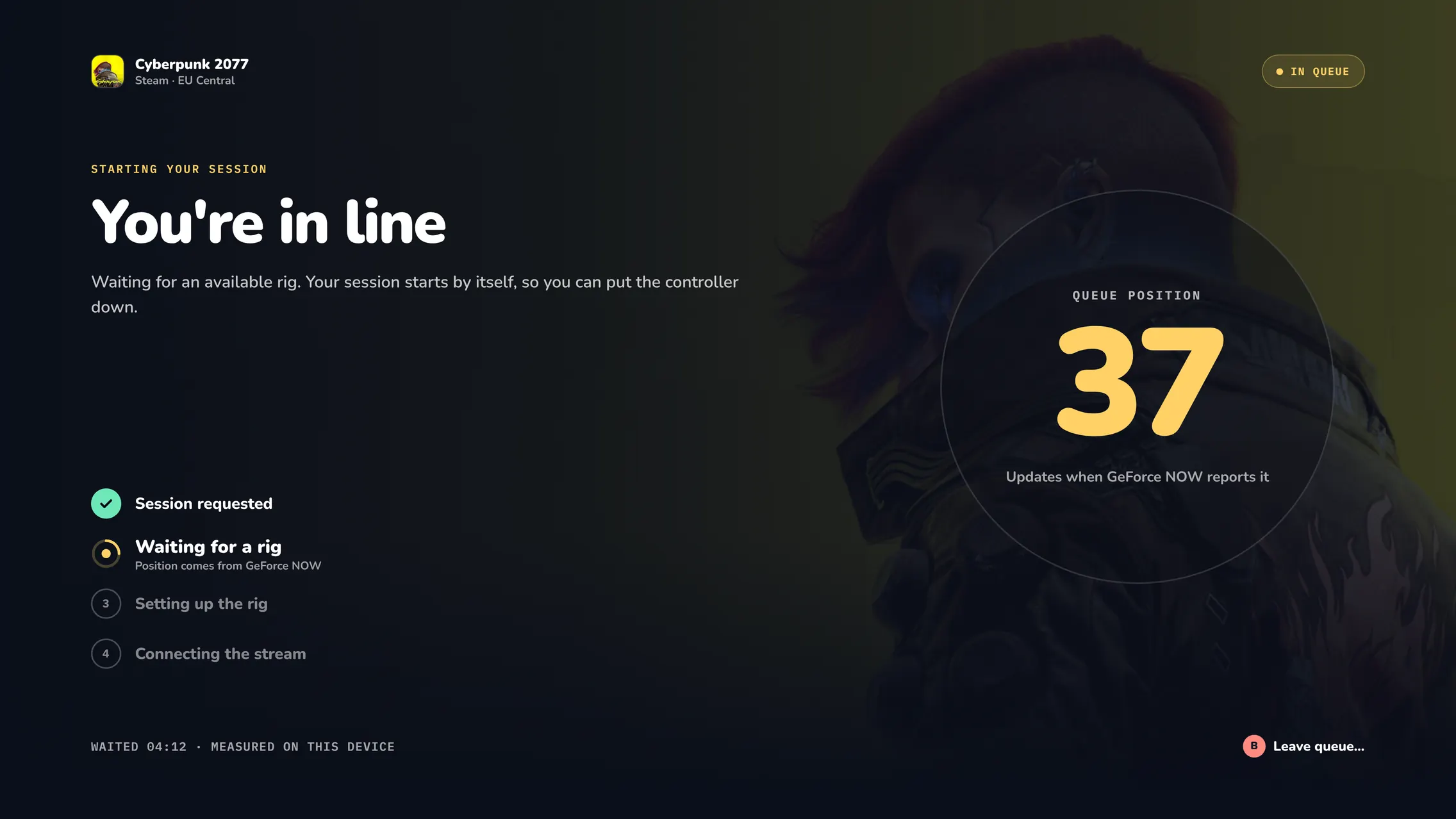
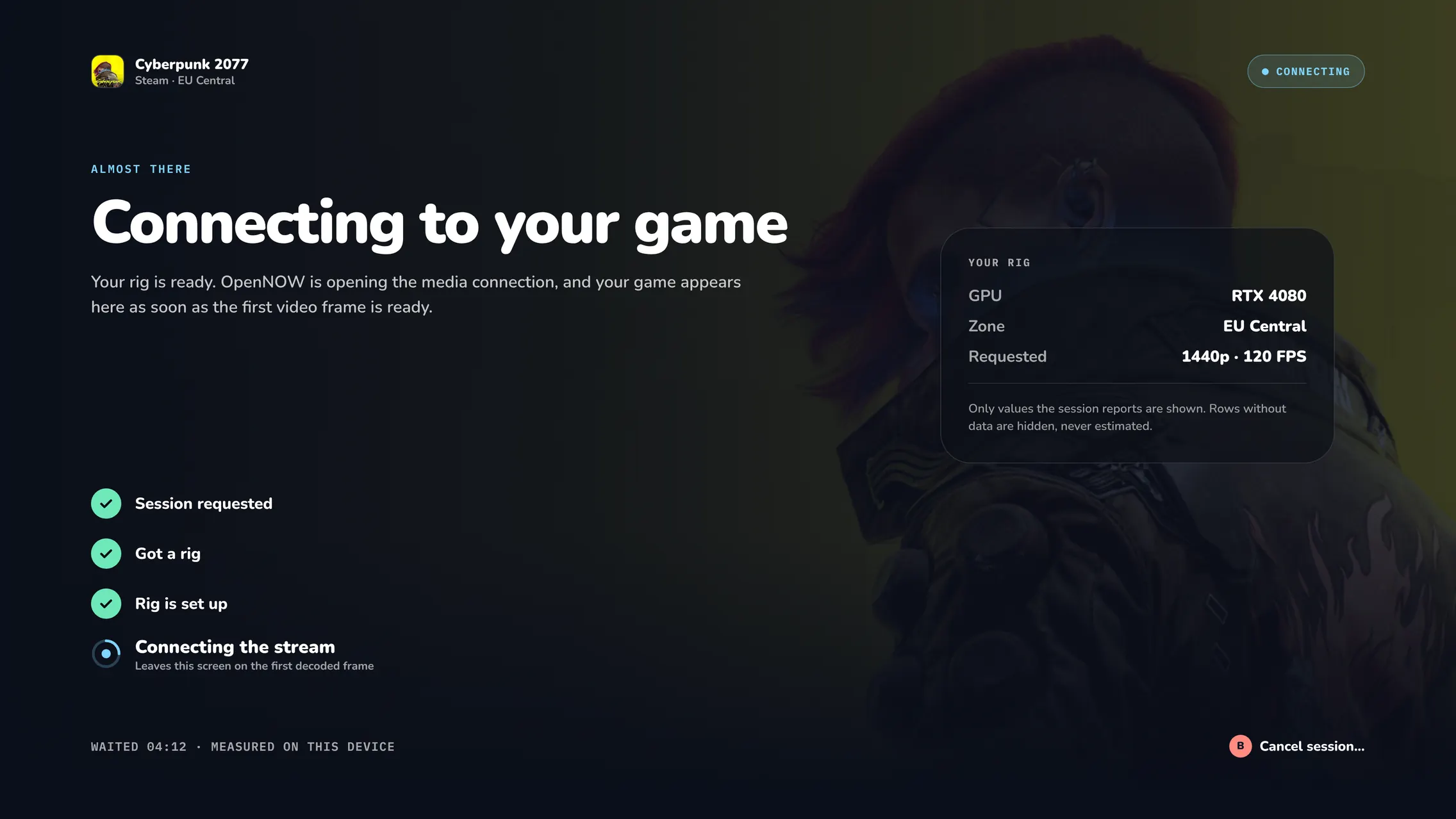
| Launch stalls on “Configuring your cloud gaming rig” or “Connected. Waiting for the first video frame.” | Cloud rig setup or the native first-frame handoff is still in progress | Wait for the named step to finish; cancel once and relaunch if it never advances |
| Game opens from the public catalog but not the library | The required store account is not linked or synced | Link or resync the store under Settings → Account, then refresh |
| Favorites look incomplete | GeForce NOW favorites coverage can be partial; home pins are separate | Refresh the library; re-add the favorite if needed |
| Wrong storefront launches for a multi-store title | The selected platform variant does not match the owned copy | Before launch, pick the store you own the game on (Steam, Xbox, Epic, and so on) in the game's details |
| Sign-in or catalog requests fail only with the API proxy on | The address in Settings → Network → Proxy address is unreachable or wrong | Turn off Use proxy or fix the address. The proxy applies to API calls only; the stream always connects directly |
| One game fails while others launch | The failure is likely title, storefront, SKU, or membership specific | Record the exact game and storefront before reporting it |
| STREAM ENDED notice with an Error code: 0x… line | The cloud server closed the session instead of you. dev shows the code it returned; a session that ends normally shows no notice | Select Copy (X in console mode) and include the code and the game name in your report, then start the session again from the game |
Do not repeatedly relaunch while an earlier CloudMatch session is still being released. Stop the session once, wait briefly, then make one clean attempt.
 In the app · Console mode › Launch › In queue
 In the app · Console mode › Launch › Connecting
Stream quality and video#
Start with H.264 · 1920×1080 · 60 FPS and a bitrate your connection can sustain. Prefer 8-bit, YUV 4:2:0 color quality. The Settings UI labels 4:4:4 profiles as Coming soon; they do not work yet. H.265, AV1, 10-bit 4:2:0, high frame rates, and ultrawide profiles still require compatible subscription profiles plus local GPU, driver, and display support. Codec Auto may select AV1 only when the probed platform/stream limits allow it.
| Symptom | Isolation step | Next action |
|---|---|---|
| Black screen with audio | Switch to H.264 and 8-bit 4:2:0, then restart the stream | Update the GPU driver; leave the video backend on Auto unless diagnosing |
| Linux: no usable video backend | No hardware decoder is available. On Linux and macOS, Auto never falls back to software decoding | On Linux, choose Software (CPU) under Settings → Stream → Advanced → Video backend. It accepts 8-bit 4:2:0 SDR only and uses more CPU. Check the host VA-API driver for hardware decoding |
| Regular stutter or rising latency | Lower bitrate first, then FPS; try enabling Save bandwidth for a steadier frame rate on constrained links | Use wired Ethernet or stronger Wi-Fi; stop competing traffic and try a closer region |
| Blocky image but stable input | Increase bitrate gradually | Keep the highest value that remains stable rather than the maximum available value |
| Colors look wrong | Return color quality to 8-bit 4:2:0 | Avoid 4:4:4 profiles (Coming soon); re-enable 10-bit 4:2:0 separately if needed |
| One-time “stream color format changed” notice | The negotiated/output format differed from the requested profile | Playback continues; keep 4:2:0 unless you intentionally selected another supported profile |
| Stutter after enabling 10-bit | 10-bit color can stutter on some systems; Settings warns when you select it | Switch back to 8-bit. If you dismissed the warning for good, set suppressTenBitWarning back to false in settings.json to see it again |
| H.265 unavailable on Windows | Microsoft's HEVC Video Extensions may be missing | Open the HEVC help in Settings and install the free Store extension first (paid offer if needed). Restart OpenNOW. GPU hardware HEVC decode is still required |
| High GPU use with upscaling | MetalFX (macOS) or FSR 1 (Windows/Linux) costs extra GPU time | Turn upscaling Off, or lower stream resolution/FPS if the local GPU is saturated |
| Flatpak cannot auto-update | Flatpak builds disable the in-app self-updater | Update with flatpak update io.github.opencloudgaming.OpenNOW from a Flatpak remote, or rebuild/reinstall a local .flatpak bundle |
| In-app update fails or does not install | Installation needs your confirmation and no active or recovering stream. Portable Windows installs on FAT or exFAT drives cannot be replaced in place. Builds older than v1.0.1 do not trust the update key | End the stream and retry Settings → Updates → Check for updates; note the failure message the updater shows. Move a portable install to an NTFS drive, or update it manually. Install v1.0.3 manually once if you come from v1.0.0 |
| Entire app window is black vs only the video surface | Note which one you see before changing settings | Export diagnostics and include both native-streamer.log and qt-native.log |
On desktop, Check for updates is on Settings → Updates, not under About & support.
Change one variable at a time
Changing codec, resolution, FPS, bitrate, backend, and region together makes the result impossible to interpret. Begin with the conservative profile, then restore one option per stream.
In the app · Ctrl+G menu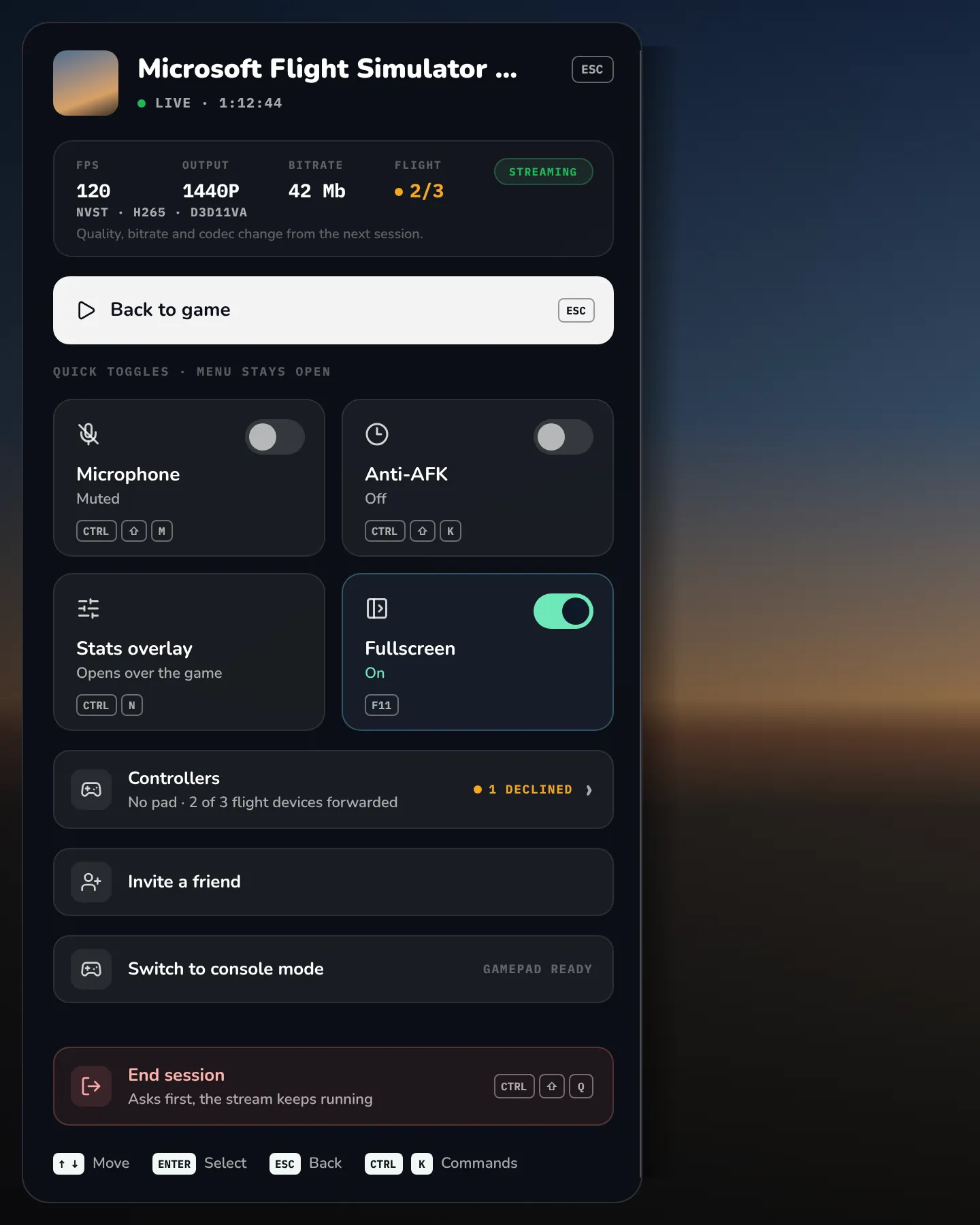 In the app · Console mode › Guide (Ctrl+G)
Input, controller, and microphone#
- Mouse does not control the game: click the stream to acquire pointer lock. Use the configured release shortcut (default
F8) before interacting with OpenNOW again. - Keyboard mapping is wrong: set Settings → Controls → Keyboard layout to match your physical keyboard, then start a new session. The layout applies to the next session, not to an active stream. Linux gameplay keys follow physical positions (including German/Swedish OEM fixes); see Input.
- Controller is not detected: connect it before launching, verify the operating system sees it, then restart OpenNOW. Close remapping software temporarily if it creates duplicate virtual controllers. An exclusive controller selection is preserved across disconnects when possible; the Settings label shows Selected controller disconnected until that pad returns.
- Console mode is hard to leave or keeps starting: move the mouse or press a key; Settings → Console mode → Leave console mode on keyboard or mouse input (
leaveConsoleOnPointer) is on by default. Turn off Start in console mode and Enter console mode when a gamepad is the only input if the app keeps opening in console mode. Console mode changes the browsing UI but does not change NVIDIA account state. - Clipboard paste does nothing: turn on Settings → Controls → Clipboard paste (default off), make sure keyboard input is active in the stream, then press
Ctrl+V(Command+Von macOS). Each paste sends up to 64 KiB of text. There is no automatic clipboard sync. - Microphone is silent: grant microphone permission to OpenNOW at the operating-system level, set Settings → Audio → Microphone to Open microphone (default Disabled), and reconnect the stream so capture is negotiated again. If Settings says microphone capture is unavailable in this build, that build cannot capture audio.
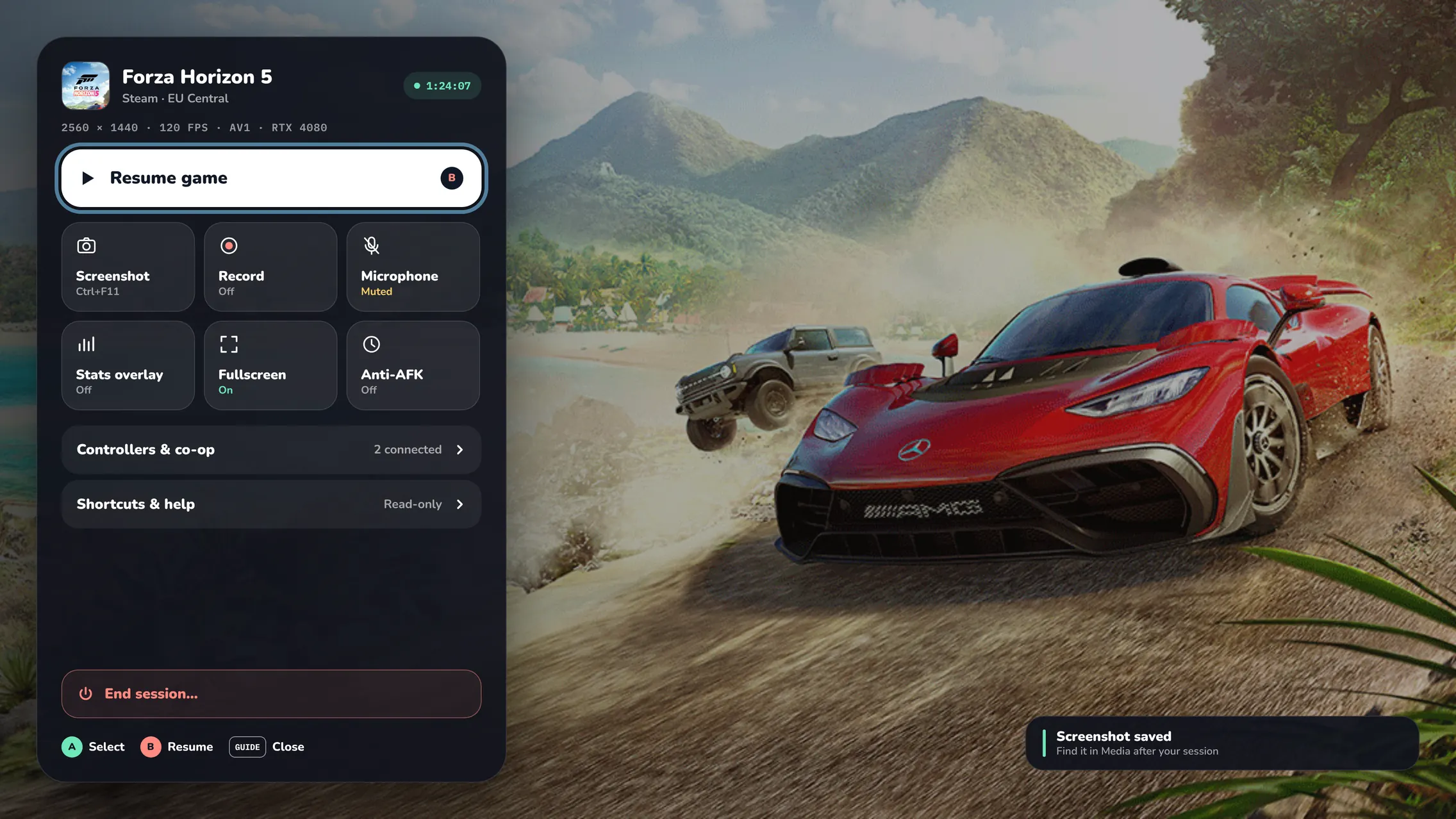
In the app · Console mode › Guide › Controllers & co-op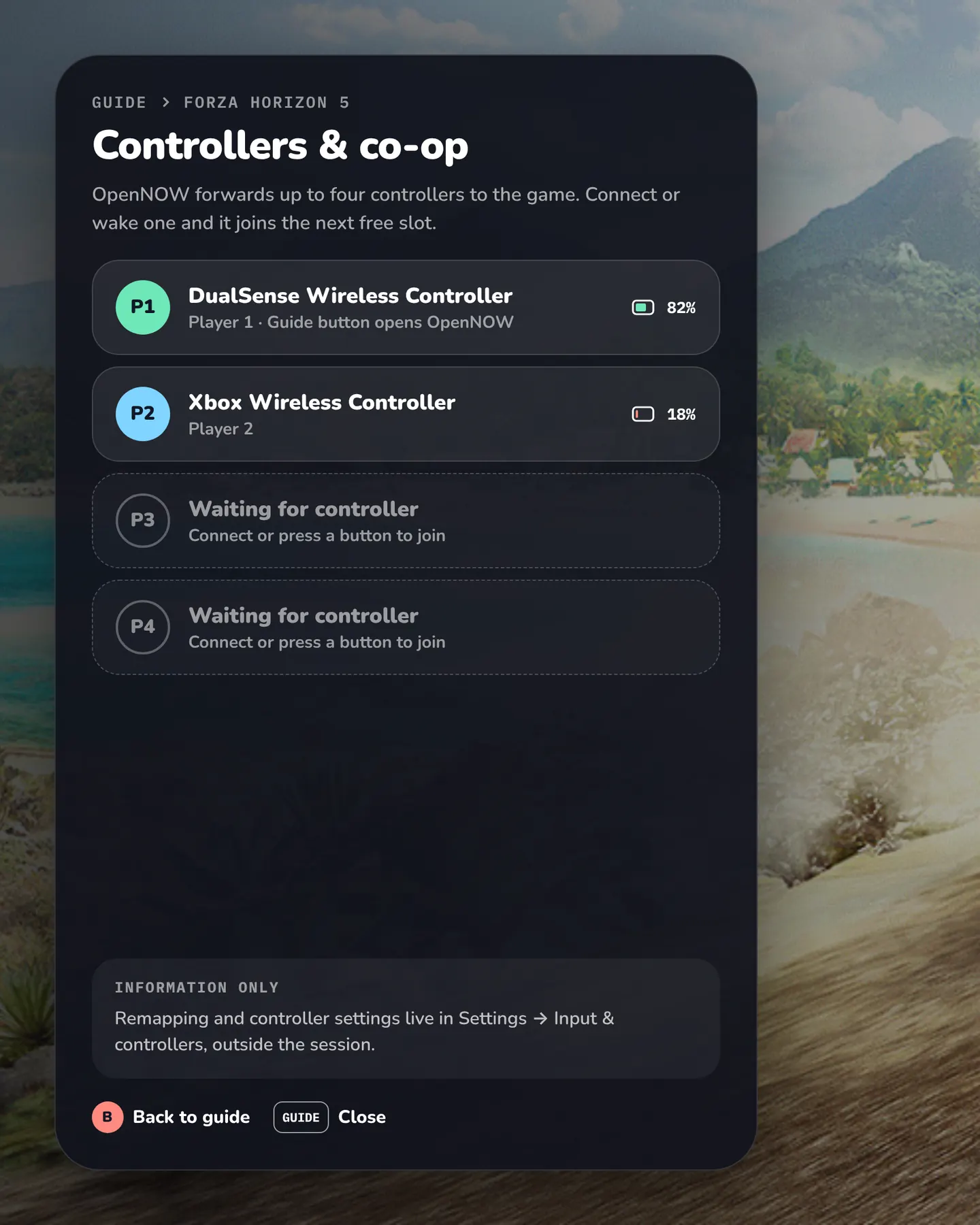
See Input and Controls for shortcuts, pointer behavior, and microphone modes.
Native stream path#
The Qt desktop app streams through the in-process native streamer over NVST. There is no browser streamer to fall back to.
To isolate a transport problem, set Settings → Network → WebRTC compatibility mode to NVST or WebRTC and start a new session. Automatic uses WebRTC for signed-in alliance-partner accounts and NVST for NVIDIA accounts. WebRTC needs direct UDP connectivity and has no microphone or clipboard text.
- Keep the video backend on Auto unless isolating a specific API.
- Restart the stream after changing codec, resolution, color quality, or backend.
- On black-screen reports, distinguish an entirely black application window from a stream-only black video surface.
- Use Settings → About & support → Copy diagnostics → Export. OpenNOW saves a redacted
opennow-diagnostics-<timestamp>.txtfile in its diagnostics directory and opens it. The report includes the current and previous run logs and bounded tails ofnative-streamer.logandqt-native.log. Secrets, URLs, tokens, e-mail addresses, and local user paths are redacted. - Include GPU, driver version, platform package name (
OpenNOW-Qt-…), and whether the same account/game works in the official GeForce NOW client.
Use Native Streamer for packaging, GPU presentation, and protocol details.
Reset local state#
Local settings and authentication are separate. Close OpenNOW before moving or deleting either.
| Data | Location |
|---|---|
| Settings | %APPDATA%\OpenNOW\settings.json (Windows), ~/Library/Application Support/OpenNOW/settings.json (macOS), $XDG_CONFIG_HOME/OpenNOW/settings.json or ~/.config/OpenNOW/settings.json (Linux), or $OPENNOW_DATA_DIR/settings.json. The previous valid copy is kept as settings.json.bak |
| Accounts and sign-in tokens | accounts.json in the data directory lists saved accounts without tokens. Tokens are kept in the OS credential store; on Windows they are encrypted files in secure-sessions/ with the key in Credential Manager. If the credential store is unavailable, tokens are saved unencrypted in fallback-sessions/. Legacy auth-state.json and sessions/*.json are migrated and removed |
| Profile PINs | console-profiles-qt.json in the data directory (scrypt hashes, local only) |
| Diagnostics | diagnostics/ in the data directory: current.log and previous.log (core), qt-native.log, native-streamer.log, and exported opennow-diagnostics-<timestamp>.txt reports |
| Caches and updates | artwork-cache/, store-cache-v2/, and updates/ (downloaded update packages) in the data directory |
| Screenshots | OpenNOW/Screenshots/ in the system Pictures folder, or $OPENNOW_PICTURES_DIR/OpenNOW/Screenshots/ |
| Recordings | OpenNOW/Recordings/ in the system Pictures folder, or $OPENNOW_PICTURES_DIR/OpenNOW/Recordings/ |
- Move
settings.jsonaside to reset preferences without deleting the saved sign-in. - Move auth/session files aside to reset the account session without resetting stream preferences.
- Back up files before destructive troubleshooting if you need to inspect or restore them later.
- Screenshots and recordings live in their own media directories; resetting settings or authentication does not require deleting captures.
Collect a useful report#
On desktop, prefer Settings → About & support → Copy diagnostics → Export. When showSessionReport is on (default), the Session report after a stream shows the transport, media backend, first-frame time, recoveries, and drop counts; Open diagnostics on that report shows the redacted recovery timeline.
If you file outside the app, include the following in a GitHub issue or the OpenNOW Discord:
- OpenNOW version and whether it is a stable, nightly, or source build (
OpenNOW-Qt-…package name when applicable) - Operating system, architecture, GPU, and GPU-driver version
- Provider, GeForce NOW membership tier, selected region, and game/storefront when relevant
- Codec, resolution, FPS, bitrate, color quality, and native video backend preference
- Exact error text and a short, repeatable sequence of steps
- Whether the same account and game work in the official GeForce NOW client
- A diagnostics export, screenshot, or session summary with tokens, email addresses, device codes, and other personal data removed
Do not post credentials
Never attach session files, access tokens, refresh tokens, QR device codes, or unredacted account details to a public issue.
Switch-specific crashes, installation failures, and decoder problems belong in the OpenNOW-Switch issue tracker. Include whether Homebrew Menu was opened in applet mode or full-memory application mode.